Source Control
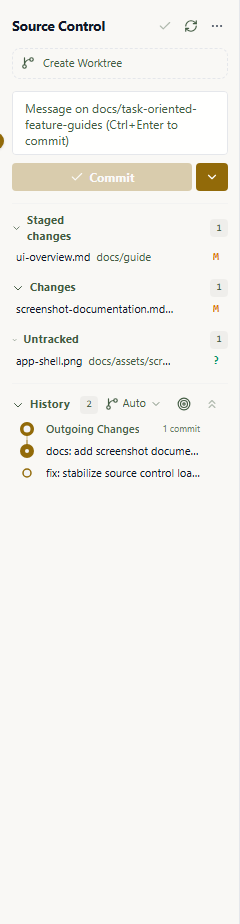
Wardian's Source Control tab lets you work with Git directly from the sidebar for the currently selected agent workspace.
Scope and Context
- The panel is available when exactly one agent is selected.
- Operations run in that agent's resolved working directory.
- If the folder is not a Git repository, the panel shows a clear "Not a Git Repository" state with the affected workspace path, a reveal action, Initialize Repository to run
git init, and Clone Repository... to clone a repository into that workspace.
Branch Bar
At the top, Wardian shows:
- current branch name
- ahead/behind indicators
- checkout, fetch, pull, and push actions
This is a quick sync layer for checking divergence and moving changes without leaving the app. Use Checkout to... to switch to another local branch in the selected workspace, or choose Create Branch... from that menu to create and check out a new local branch. Use Fetch to update remote-tracking refs without merging. If the selected branch has not been published yet, the push action publishes it to origin and sets the upstream branch.
The overflow action menu is grouped into Branch, Sync, View, and Stash submenus so secondary actions stay available without crowding the Source Control title row.
Use the Stash submenu for common stash operations. Stash Changes parks tracked changes, Stash Changes Including Untracked also includes new untracked files, Stash Staged parks only staged changes while leaving unstaged edits in the workspace, Apply Latest Stash applies the latest stash while keeping it in the stash list, Apply Stash... lets you choose a specific stash to apply while keeping it in the stash list, and Pop Latest Stash applies the latest stash back onto the selected workspace and drops it from the stash list. Pop Stash... lets you choose the stash entry to apply and remove. Use View Stash... to choose a stash entry and inspect its patch in the diff viewer without applying it. Use Drop Stash... to choose and remove one stash entry after confirming the destructive action. Use Drop All Stashes... to clear every stash entry for the selected workspace after confirming the destructive action.
When Wardian is refreshing Git status or running source-control operations, the Source Control rail icon shows activity and the panel keeps the current file list visible with a live progress row.
Use the refresh control in the branch bar to reload both working-tree status and history on demand.
File Sections
The panel groups files into:
- Merge Changes (unresolved conflict states)
- Staged Changes
- Changes (unstaged tracked files)
- Untracked
Nested paths render as an expandable tree by default. Use Use Tree View or Use List View in the Source Control overflow menu's View submenu to switch presentation; Wardian remembers the choice for each repository root.
Within each section, files are ordered for scanability by default: conflict states first, modified/copied/type-changed files next, then ordinary added/deleted/renamed/untracked files by path. Use Sort by Path, Sort by Name, or Sort by Status in the Source Control overflow menu's View submenu to choose the resource ordering. Wardian remembers the sort mode for each repository root. Tree mode keeps directories grouped while applying the selected ordering inside each folder.
Available actions include:
- stage / unstage
- stage tracked changes / stage untracked changes / unstage staged changes
- discard tracked edits and untracked resources
- open file diff
- open files in the configured external editor
- reveal files in the Explorer view
Right-click a group header for the matching batch action. Wardian scopes those actions to the group you clicked, so staging Changes does not also stage Untracked files. The Changes and Untracked groups also expose Discard All Tracked Changes and Discard All Untracked Changes for cleaning the selected resource group after confirmation. The same discard actions appear as inline header buttons beside the stage-all controls.
Group header menus also include VS Code-style diff actions. Use Open Staged Changes, Open Changes, or Open Untracked Changes to inspect a combined diff for only that resource group.
In tree mode, right-click a folder to act only on files under that folder. This matches VS Code's folder-level Source Control menus for staging, unstaging, or discarding a directory without touching sibling changes. Use Add to .gitignore on an untracked or changed folder to append that folder pattern to the repository .gitignore and refresh Source Control.
Clicking a file opens an inline diff modal with colored additions, deletions, and hunk markers. Untracked files show a new-file diff so you can inspect them before staging. Working-tree file diffs include Stage Changes, and staged file diffs include Unstage Changes, so you can act on the file you are reviewing without returning to the resource list. Individual hunk headers also include Stage Hunk or Unstage Hunk for applying only that hunk to the index.
Right-click a file and choose Open File to use the file-family preference from Settings: Wardian-preferred files open in a permanent Files surface, external-preferred files use the configured editor, and unsupported files use the system-preferred application. Reveal in Explorer View inspects the workspace location. Choose Open File (HEAD) to inspect the committed version of a changed file without changing the working tree. On unstaged file resources, choose Add to .gitignore to append that file path to the repository .gitignore. Staged files also include Compare with Workspace to inspect how the working-tree file differs from the staged index version.
Commit Flow
Use the commit box to enter a message, then commit:
- placeholder:
Message on <branch> (Ctrl+Enter to commit) - primary action: Commit when files have changes, Publish Branch when a clean branch has no upstream, or Sync Changes when a clean branch is ahead or behind
- shortcut:
Ctrl+Enter(orCmd+Enteron macOS)
The commit action is enabled when:
- there is a commit message, and
- at least one file is staged or unstaged
If there are only unstaged changes, Wardian stages them before creating the commit.
Use the More Actions chevron beside the commit button for commit variants. Commit Staged commits only staged files, while Commit All stages remaining unstaged files before committing. Commit (Signed Off) creates the normal commit while appending Git's DCO Signed-off-by trailer, Commit Staged (Signed Off) appends the same trailer while committing only staged files, and Commit All (Signed Off) stages every pending change before adding that trailer. Commit (Signed Off, No Verify) adds the same DCO trailer while bypassing local hooks, Commit Staged (Signed Off, No Verify) does so for only staged files, and Commit All (Signed Off, No Verify) stages every pending change first. Commit Empty creates a marker commit from a clean repository when the commit box has a message, and Commit Empty (No Verify) does the same while bypassing hooks. Commit (No Verify) creates the commit with --no-verify for cases where local hooks should be bypassed, Commit Staged (No Verify) bypasses hooks for only staged changes, and Commit All (No Verify) stages every pending change before bypassing hooks. Commit (Amend) rewrites the latest commit with the current message and staged content when history has loaded, Commit (Amend, No Verify) rewrites it while bypassing hooks, Commit Staged (Amend) folds only already-staged changes into the latest commit, Commit Staged (Amend, No Verify) combines staged-only amend behavior with hook bypassing, Commit All (Amend) stages all pending changes first, then rewrites the latest commit, and Commit All (Amend, No Verify) does the same while bypassing hooks. Wardian remembers the last selected staged/all variant and promotes it to the next primary commit action.
The same menu includes Undo Last Commit after history has loaded. Wardian asks for confirmation, moves HEAD back one commit, keeps the undone changes in the working tree, and restores the undone commit message into the commit box. When a rebase is in progress, the same menu includes Abort Rebase to run git rebase --abort and refresh the panel.
Wardian shows an advisory warning when the commit subject line is longer than 50 characters or a body line is longer than 72 characters. The warning does not block the commit.
History Graph
The History section shows recent commits for the selected workspace as compact graph rows. Rows use fixed swimlane spacing, highlight the current HEAD, show branch/upstream labels when Git reports them, and keep the commit subject, short hash, author, and date visible for quick scanning. When the selected branch has remote divergence, the graph adds dashed Outgoing Changes and Incoming Changes markers with commit counts so the branch shape and sync direction are visible before syncing. Expand a commit row to inspect the files changed by that commit without leaving the Source Control panel. Expanded changes default to a collapsible folder tree and can be switched to a flat full-path list from the graph controls. Use Load More... at the bottom of the graph to request the next page of commits without changing the current graph presentation.
Use the graph controls to switch between auto refs, all refs, current branch, and upstream filters, switch expanded changes between tree and list mode, then switch between detailed and tiny density. Wardian remembers the chosen ref filter, change view mode, density, and expanded commit rows for each selected repository root, and the collapse control closes all expanded commits in the current graph.
Worktree Mode
Source Control also exposes worktree actions:
Create Worktreeopens an inline name field, then creates a worktree for that agent- available shared worktrees can be joined from the same action area
- removing worktree returns the agent to main workspace behavior
When enabled, Wardian creates a named worktree beside the source checkout under <source-checkout>.wt/<worktree-name>, creates a matching wardian/<worktree-name> branch, shares supported Node and Python caches with the source checkout, and moves the agent runtime to that path with a fresh provider session. For example, a source checkout at <absolute-workspace-path>/Wardian creates Wardian-managed worktrees under <absolute-workspace-path>/Wardian.wt/. Joining an existing shared worktree assigns the same worktree path to another agent and also starts that agent fresh in the shared path.
For Rust workspaces, Wardian sets CARGO_TARGET_DIR for provider runtimes in worktree mode to that worktree's own target directory. This keeps builds isolated when a managed terminal inherits the provider environment, preventing Cargo artifacts from another checkout or branch from being reused. Wardian still writes a generated Cargo config only when a worktree does not already contain one. Node node_modules and Python .venv caches continue to be linked back to the source checkout when those caches exist.
Wardian-created worktrees are real Git worktrees. They are created through git worktree add, so they appear in git worktree list for the source checkout.
Wardian also discovers Git worktrees that already belong to a known source workspace, even when they were created outside Wardian. Discovered worktrees with no assigned agent appear as joinable shared worktrees. Unassigned worktrees under <source-checkout>.wt/ can also be deleted from the same list; legacy Wardian worktrees under <wardian-home>/agents/<session-id>/worktrees/ remain recognized and deletable. Wardian asks for confirmation, warns that local changes will be discarded, removes Wardian-generated cache redirects, and then runs git worktree remove --force. On Windows, removal stops before cache cleanup if the worktree contains any other directory junction or reparse point; remove or relocate it, then retry. Deleting the folder keeps its branch; creating the same worktree name later reattaches that preserved branch.
If a target worktree folder already exists but Git does not recognize it as a worktree for the source checkout, Wardian refuses to assign it. Create it with git worktree add or remove the folder and let Wardian create it.
Removing a Wardian assignment does not delete the physical worktree. Wardian's delete action is separate and only applies to unassigned Git-registered worktrees under Wardian-managed worktree roots. External worktrees remain joinable but use manual Git deletion, for example git worktree remove <absolute-worktree-path>, after no agent is using that path.
The same agent worktree controls are available from the CLI when the desktop app is running for the same WARDIAN_HOME:
wardian agent worktree list
wardian agent worktree enable <agent-name-or-id> --name <worktree-name>
wardian agent worktree join <agent-name-or-id> --worktree <absolute-worktree-path-or-id>
wardian agent worktree disable <agent-name-or-id>
Safety Notes
- Discard is destructive; Wardian asks for confirmation.
- Git operations are executed with non-interactive credential prompts disabled to avoid blocking UI flows.
- Provider resume is workspace-path-bound. Worktree moves use a fresh provider session, not
--resumefrom the new path. - Removing a worktree assignment does not delete the physical worktree; use the separate delete action only after no agent is assigned.
- If pull/push fails, check local credentials and remote permissions in your terminal environment.