Grid
Grid is a display mode inside the Agents Workbench surface. It is no longer a global page or a title-bar destination.
This compatibility guide preserves the familiar Grid automations and points older instructions to their current location.
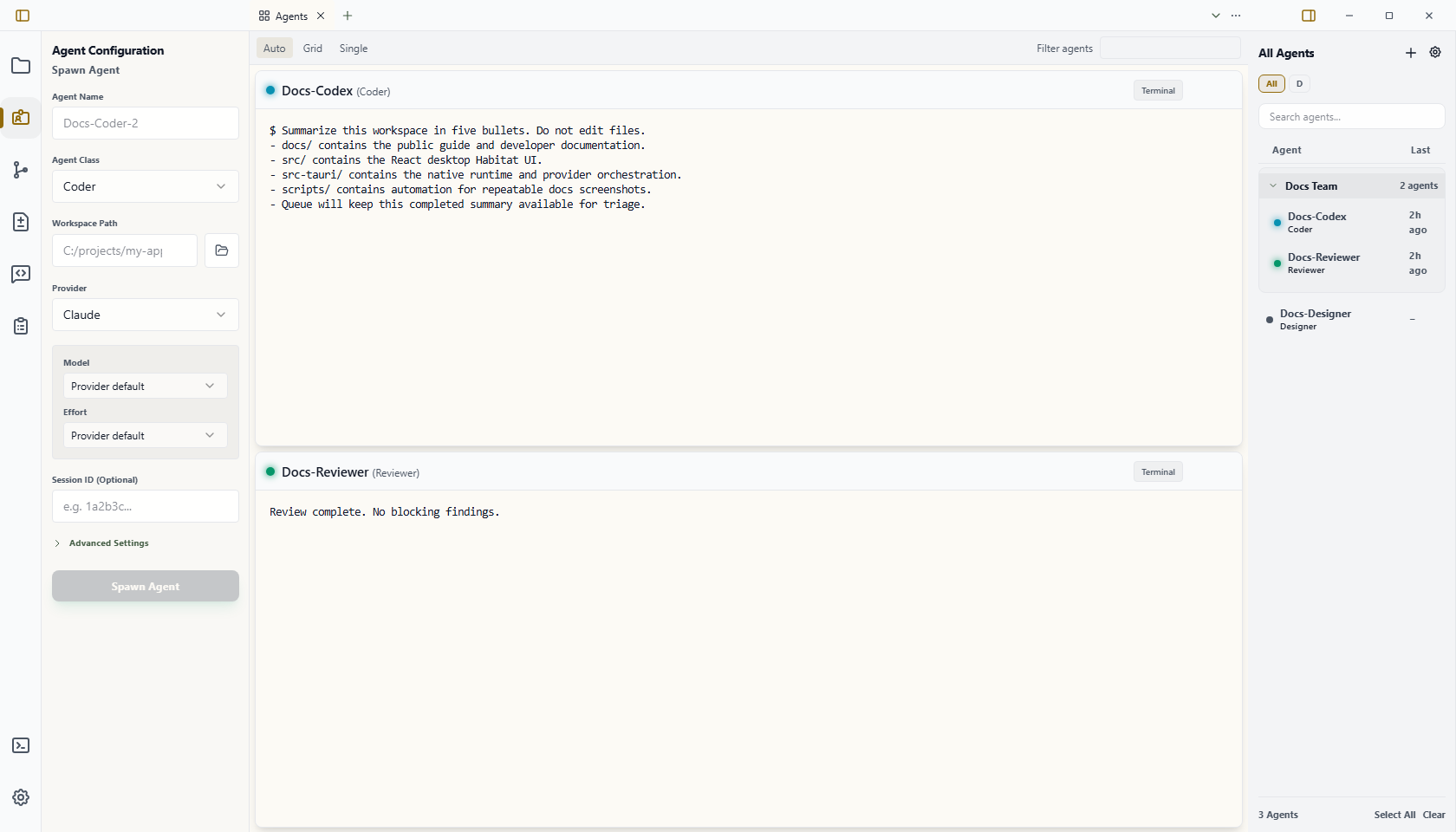
Open Grid Mode
- Press
Ctrl+P/Cmd+P, or select a pane's + button. - Open Agents.
- Select Grid in the surface header.
Use Auto when Wardian should switch between a multi-card grid and a focused single card based on available space. Use Single when one focused agent should fill the surface.
What Grid Mode Keeps
- Live terminal cards side by side.
- Normalized Chat cards with per-agent prompt drafts.
- Drag-to-reorder card headers.
- Manual row and column resizing.
- Per-card Terminal / Chat switches.
- Maximize to focus one agent in Single mode.
- Reset Grid Layout in the background context menu.
The default card display comes from Settings > Agents > Agent card display. Per-agent overrides remain temporary to the Agents surface.
What Changed
- To open another app area, open a Workbench surface instead of switching a global view.
- The right roster separates targeting from navigation. Selecting an agent targets auxiliary tools; Open or Open to Side opens its session.
- Closing the Agents tab closes only the presentation. It does not stop any agent.
- Workbench Zoom pane expands one pane. Card Maximize changes Agents to Single mode. Neither action maximizes the native application window.
Terminal and Chat Behavior
Terminal mode uses the provider's real PTY, including raw keys, approvals, TUIs, scrollback, and clickable supported links. In the normal screen, the wheel scrolls terminal history; in an alternate-screen TUI with mouse tracking, the TUI receives wheel input. Click inside a terminal to explicitly activate that presentation before typing. A mirrored presentation stays read-only until activated.
Chat mode shows normalized user, assistant, status, tool, approval, and terminal-output events. Message copy actions use a stable side gutter: hover and keyboard focus reveal them without shifting text, while narrow and touch layouts retain 44px targets without covering content. Command-only tool calls with provider lifecycle labels use a compact one-line command summary by default, including labels such as exec_command_begin, exec starting, exec running, and exec; command-less lifecycle keepalives are hidden, while named tool titles remain available when they add useful context. Provider boilerplate such as output and Script completed is merged into its command or hidden when unpaired, even when success metadata is absent, without discarding meaningful output. Expand the surrounding work log or activity details when you need output, diffs, or structured evidence. Use Enter to send and Shift+Enter for a newline. The composer accepts file-picker selections, native file drops, and filesystem-backed file pastes. Changing its model persists the selection. For a live Codex agent, Wardian applies both model and effort through the interactive /model pickers step by step. Other providers and off agents use the saved choice after their next start or restart. Model and effort controls remain unavailable until the operation finishes, so each change is applied in order. Terminal keystrokes received during the Codex picker wait until that transaction finishes instead of changing a picker choice. Switch back to Terminal when you need provider-specific keys or a raw approval screen.
Chat text and attachments remain editable while an agent is processing. With content in the composer, the action submits a queueable message and is labeled Queue message; with an empty composer, it remains Interrupt agent.
Wardian preserves terminal state across tab changes, pane moves, Agents layout changes, and remote handoff. Reclaimed renderers restore and fit automatically when their presentation becomes visible.
Restoring a live terminal keeps the broker's retained scrollback above the current screen, including short histories that fit within one viewport. This history is bounded runtime state; restarting the provider does not restore a terminated terminal's screen.