Automation View
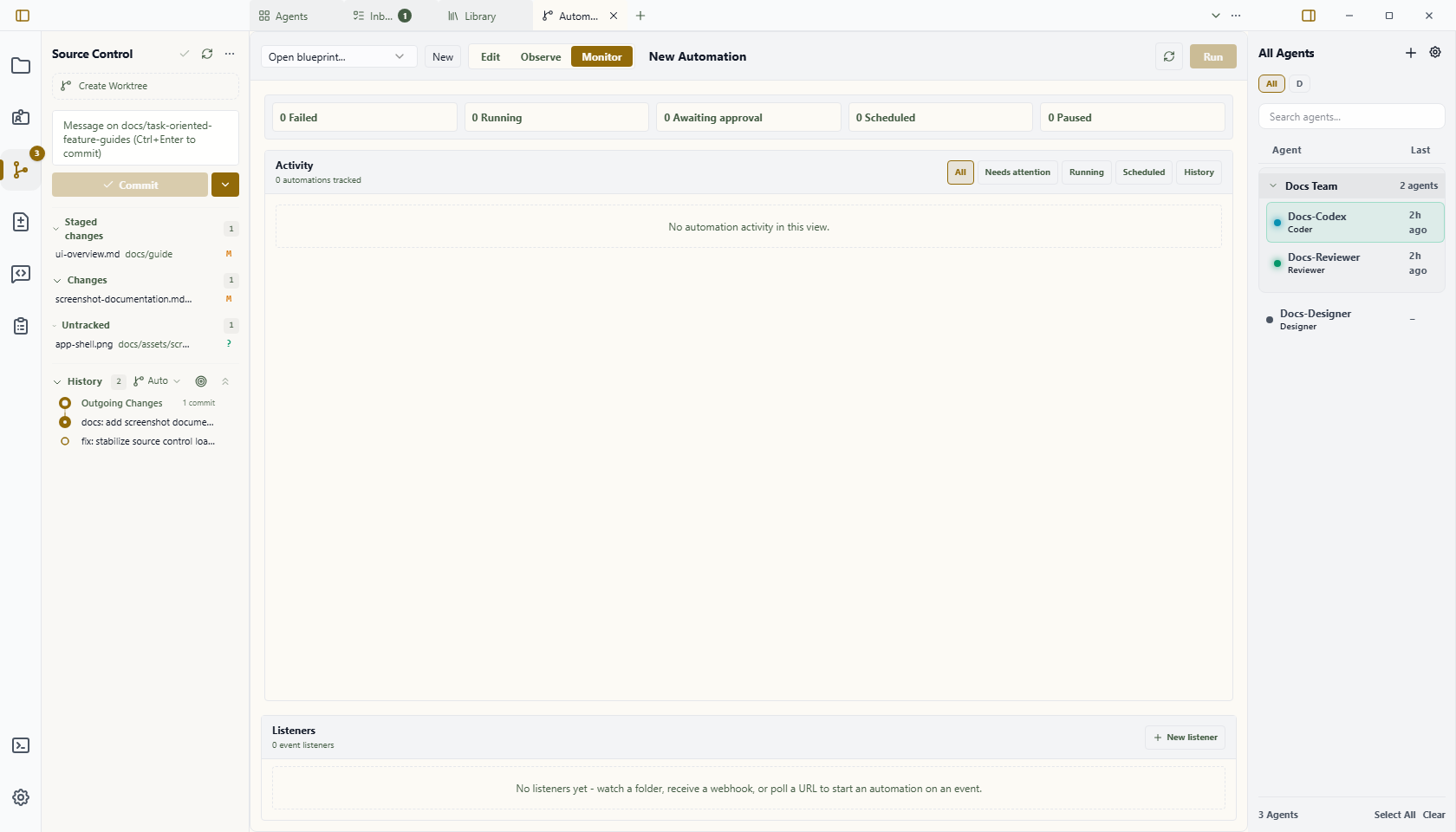
The Automation view is Wardian's canvas for building and testing automations.
Use this page as a quick manual for the view itself. For the full automation reference, start at Automations.
Use it when a repeated multi-step agent process needs a saved visual flow instead of a one-off prompt or broadcast.
Before creating an automation from scratch, see Automation Samples for editable, generic examples of a code-change review, scheduled brief, research brief, incident triage, and conversation pattern review flow.
When to Use It
- Chain multiple agent, command, wait, or branch steps.
- Reuse a process that should run manually, on a schedule, or from a listener trigger.
- Inspect upstream values before passing them into later nodes.
- Compare automation outcomes in Inbox.
What You Can Do Here
- open an existing automation
- create a new automation
- add nodes from the block library
- wire nodes together on the canvas
- edit node settings
- save changes
- launch the automation according to its trigger type
Main Areas
- Edit: build the graph, add nodes, wire edges, edit node settings, and inspect upstream values.
- Observe: inspect a selected run's graph state, event timeline, node outputs, and approval controls.
- Monitor: manage scheduled automation invokers and open active or recent runs.
- Left automation rail: glance at active runs and upcoming schedules, then open Monitor when you need full controls.
Running From This View
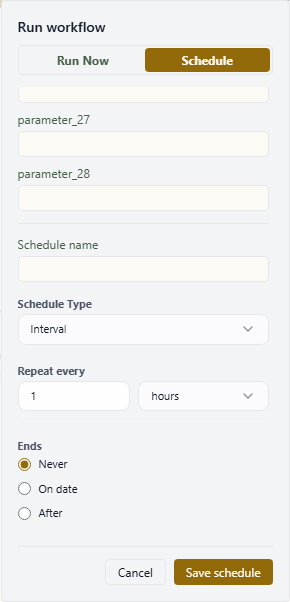
The Run button opens a launch dialog for the current blueprint. Use Run now for an immediate run, or switch to Schedule to create a persisted schedule with the same provider, workspace, and input parameters.
Manual input parameters appear in the dialog when the blueprint's entry trigger defines an input schema. When an automation has many input parameters or schedule controls, the dialog stays within the Automations view and scrolls the form body so the action buttons remain reachable.
Running From The CLI
wardian automation exec <path> launches a live automation through the running Wardian app. Use the same WARDIAN_HOME for the app and CLI so both processes share the control endpoint and run logs. Pass --workspace <absolute-workspace-path> when headless automation tasks should run against a specific project checkout.
Scheduled automations always require an existing workspace directory. The Schedule launch form validates this value before saving, and the CLI uses the same rule for automation schedule add and automation schedule update. Use the CLI update command to change cadence, assignments, provider, input, or pause state without replacing the schedule identity.
For a weekly schedule, use --weekly <days@HH:MM>; it defaults to one-week recurrence. Use --repeat-every <positive-integer> for a longer weekly interval from 1 through 520 weeks, such as --weekly Sun@12:00 --repeat-every 2. The separate --every option remains interval-only and is expressed in minutes. Monthly, daily, and specific-date schedules do not currently support a repeat interval in the shared schedule model.
Bash:
export WARDIAN_HOME="$PWD/.tmp/wardian-automation"
wardian automation exec "$WARDIAN_HOME/library/automations/autoreview.md"
wardian automation exec "$WARDIAN_HOME/library/automations/autoreview.md" \
  --workspace "<absolute-workspace-path>" \
  --input '{"target":"PR #123","max_cycles":1}'
PowerShell:
$env:WARDIAN_HOME = "$PWD\.tmp\wardian-automation"
wardian automation exec "$env:WARDIAN_HOME\library\automations\autoreview.md"
wardian automation exec "$env:WARDIAN_HOME\library\automations\autoreview.md" `
  --workspace "<absolute-workspace-path>" `
  --input '{"target":"PR #123","max_cycles":1}'
The live/default path requires the app because active-agent routing, PTY input, automation shell/script execution, and automation task reply tracking are app-owned. The mock executor exists only for automation-engine fixture tests.
Monitoring Automation Activity
Automations opens in Monitor by default. Choose Edit when you want to author a workflow; opening a blueprint for editing or a run for observation also switches to the appropriate view explicitly.
Monitor shows a unified activity feed for automation schedules and runs. Use the tabs to switch between all activity, items needing attention, running work, scheduled work, and history.
Agent selection also scopes this view. With no agents selected, Monitor and the left automation rail show all automation activity. With one or more agents selected in the roster or an agent surface, they show schedules, listeners, and runs whose saved role assignments include any selected agent. The automation picker follows the same deployed-workflow scope; an already open blueprint stays available so changing selection cannot hide an editing context. When agents are selected, use the Selected agents / All agents control in the workflow surface to switch that surface between the scoped and unscoped views. This control affects the workflow picker, Monitor, and listeners; the left automation rail remains scoped to the selected agents.
This is a lens over saved invoker assignments, not a second ownership record. Blueprint roles remain reusable and do not identify an agent until a schedule or listener binds them. A manual run without its own schedule appears in an agent scope only when that blueprint has a saved assignment for the selected agent.
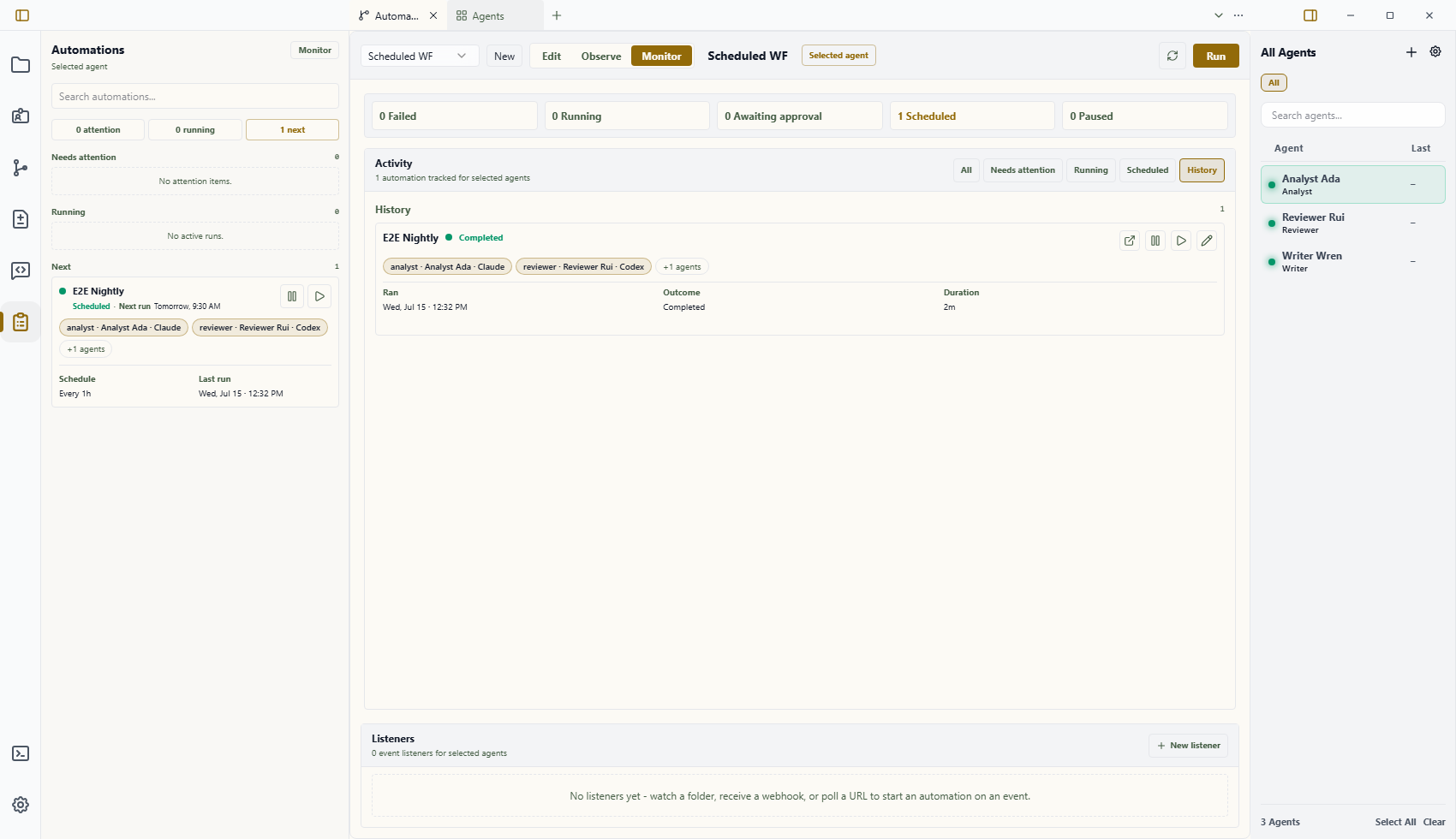
Each section uses a card hierarchy suited to the operator's question:
- Scheduled leads with assigned agents, then Next run, Schedule, and Last run.
- History leads with assigned agents, then Ran, Outcome, and the run duration when available. Historical cards do not show a future next-run time.
- Running leads with ownership and live state, including when the run started and was last updated.
- Needs attention leads with ownership, the action required, and the latest status update. It includes approval gates, unsuperseded failed runs, and schedule launch failures that do not have a newer retained run. A run also remains here while one of its temporary workers is failed, waiting, or unknown.
- All preserves those section-specific priorities instead of forcing every activity into one universal row layout.
Cards show up to two role-aware assignment chips when an automation actually has agent assignments. Pure script automations do not show an invented default assignment. When an automation has more assignments, the accessible +N agents control expands the complete role map without making every collapsed card taller. Stored agent ids remain visible if an assigned agent is no longer in the roster.
Open a run and select a node to inspect its temporary worker attempts. The node inspector distinguishes the automation attempt from verified provider-spawned children and reports the provider, lifecycle state, ancestry/source coverage, and available capabilities. It labels each worker's own usage separately from its descendant combined usage. Observe only means Wardian can read the recorded work but has no verified follow-up, resume, or interruption transport for that worker. Temporary workers do not become permanent agents or watchlist rows.
Cancelling a run asks its currently active automation-owned headless worker to stop and waits briefly for process termination and registry acknowledgement. Provider timeouts and lost post-submit observation remain Unknown for reconciliation; Wardian does not treat them as safe failures to retry.
Run and schedule times use local, calendar-aware labels such as Today, Tomorrow, a nearby weekday and date, or a full date for more distant activity. Explicit fallbacks distinguish Paused, Not scheduled, and Never run states, while exact local date, time, and timezone remain available as supporting detail.
The top counters summarize failed, running, awaiting, scheduled, and paused activity. Scheduled cards retain the current Monitor actions:
In a narrow or restored Automations pane, the responsive card grid stays within the pane while its summary and filters remain fixed. The card list scrolls independently without widening or collapsing the surrounding workbench layout.
- Pause or Resume changes whether the schedule fires on its saved recurrence.
- Run now launches the scheduled invoker immediately.
- Edit reopens the schedule form.
All aggregates the Needs attention, Running, and Scheduled sections into one operational view. History is the chronological run stream, paged 10 entries at a time so you can move through earlier activity.
The left automation rail uses a compact Scheduled-style card at normal sidebar widths. It keeps the automation name, next run, two assigned agents with the same +N agents expansion, schedule, previous run, and pause or resume and run-now actions readable without repeating raw blueprint ids in the primary layout. Sidebar search also matches resolved agent names so you can find the automation owned by a particular agent. Selecting that agent applies the scope before the search, status counts, and upcoming list are calculated.
Important Limits
- The visual view is for building and launching automations. Detailed node semantics live in the automation reference.
- Real provider behavior still depends on the selected agent class, provider CLI, workspace, and runtime settings.
- Scheduled and listener automations require the app runtime to be available when they are expected to run.
- Inbox records final automation outcomes and automation approval decisions, not every intermediate node state.