The Library System
The Library is the single home for everything reusable in Wardian: skills, prompts, classes, and automation blueprints. It stores the capabilities and context you want agents to reuse across sessions, and it is where you deploy those capabilities into the scopes that need them.
Use it when you want to save a repeatable prompt, manage a deployable skill, edit a class's AGENTS.md, or find an automation blueprint before launching a run.
The Library lets you start small and reuse what proves useful. A one-off instruction can become a saved prompt; a repeated procedure can become a skill; and a skill can be shared with every agent, a class, or one agent.
For a visual map of how prompts, skills, classes, and automations relate, see Key Concepts.
When to Use It
- Turn a repeated instruction into a prompt instead of rewriting it in terminals.
- Star operational prompts so they appear in the Command Panel.
- Deploy skills globally, by class, or to a specific active agent, and see at a glance which items are already deployed.
- Edit a class's instructions and manage its deployed skills in one place.
- Find an automation blueprint before launching a run from the Automations view.
Layout: Rail, List, Detail
Open Library from a pane's + menu or Quick Open palette. It is a self-contained three-pane surface that does not replace the global left sidebar:
- Section rail — a slim vertical strip on the left with one icon-and-label button per section (Skills, Prompts, Classes, Automations, MCPs) and a count badge showing how many entries live in each. Click a section to switch to it.
- List — the middle pane. It shows the active section's contents as collapsible folder groups (browsing) or a flattened, ranked list of matches (searching). Its toolbar has a search box, a starred-only filter, a New menu (new item / new folder), and a reveal-in-file-manager shortcut.
- Detail pane — the right pane. Selecting a row opens a Markdown preview and a panel specific to that entry's kind (skill, prompt, class, or automation). There are no more modals: everything you need to inspect or change an entry happens in this pane.
Library Sections
1. Skills
Skills are modular capabilities (extensions) that can be deployed to your agents or classes.
- Organization: skills are stored as
SKILL.mdfiles under<wardian-home>/library/skills/, organized into folders. Folders in the list are collapsible; a skill's description comes from its YAML frontmatter (description:), falling back to the first line of content when frontmatter is missing or malformed. - Physical deployment: skills are deployed using native directory links (Windows junctions, Unix symlinks) rather than a configuration toggle. If link creation fails, Wardian falls back to a recursive copy plus a source marker file so the deployment is still tracked.
- Live sync: when you edit a skill's source in the Library, every linked deployment picks up the change instantly. A deployment created via the copy fallback does not — see the copied-badge note below.
2. Prompts
Prompts are reusable text injections that you send directly to one or more agents' terminals.
- Organization: prompts are stored as
.mdfiles in<wardian-home>/library/prompts/, and can be organized into folders the same way skills are. - Quick injection: star a prompt to make it appear in the Command sidebar tab for one-click execution.
- Running a prompt: select one or more agents in the Roster (right sidebar), open the prompt in the Library, and click Run in the detail pane. The prompt body is flattened to a single line and sent to every selected agent's terminal. The Run button is disabled with a tooltip if no agent is selected.
3. Classes
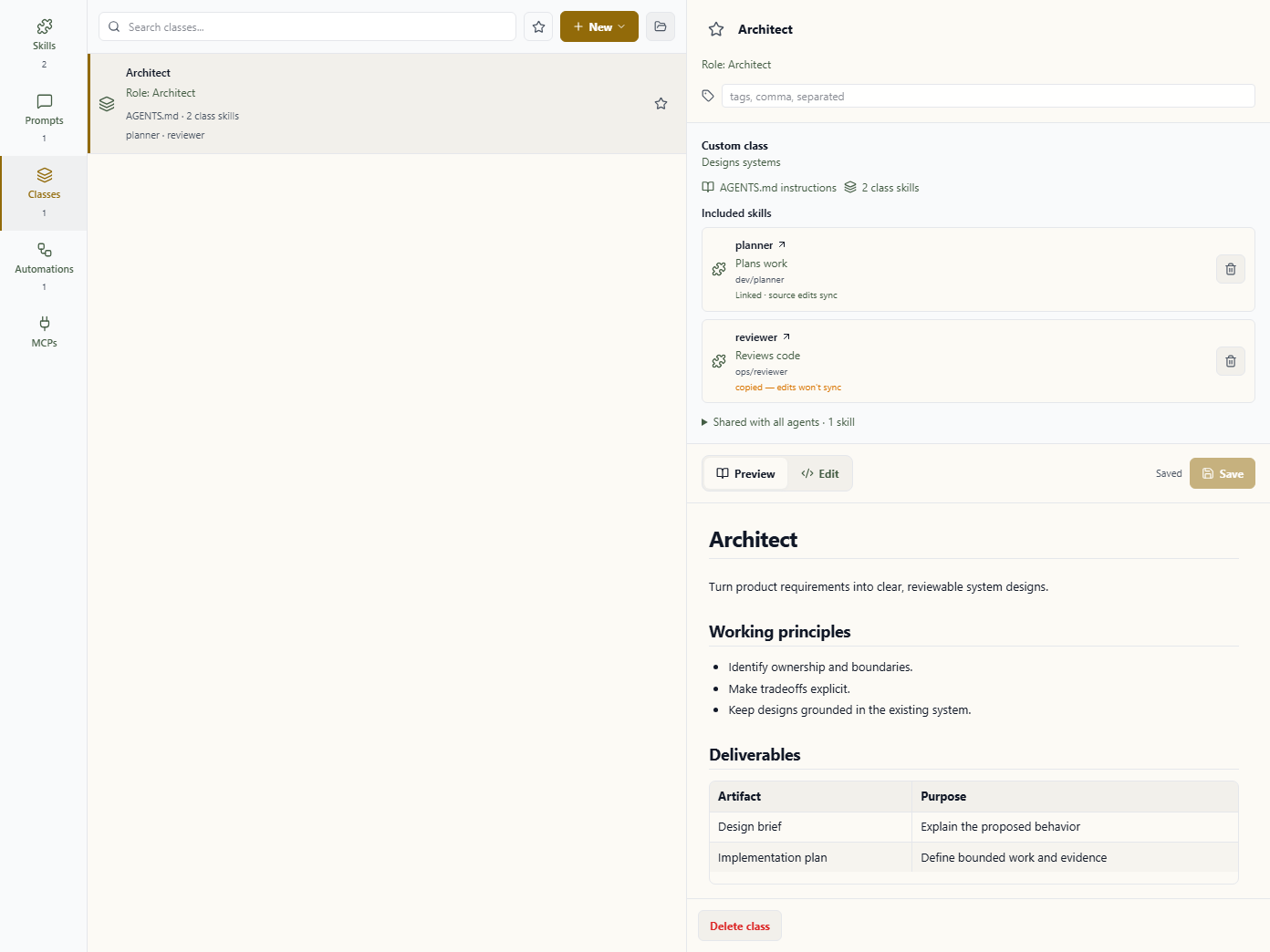
Classes — Wardian's reusable starting setups for agents — are now edited from inside the Library instead of a separate sidebar panel.
- Organization: classes are flat (no folder nesting) and appear under
<wardian-home>/classes/<Name>/. - Class workbench: opening a class puts its
AGENTS.mdin the top of the detail pane, using the same inline editor every other section uses. Below it are:- the list of skills currently deployed to the class, with the same linked/copied indication skills show elsewhere, and a per-skill remove control;
- provider defaults (default vs. custom class, and its description);
- Reset to default for built-in classes, or Delete class for custom ones.
- Spawning an agent from a class still happens from the agent spawn flow, not from the Library.
4. Automations
Automation blueprints live in the Library; automation runs do not.
- Organization: blueprints are stored as
.mdfiles under<wardian-home>/library/automations/. - Editing: the detail pane opens the same inline markdown editor as other sections, plus a Launch Run button that resolves the blueprint on disk and opens the run-launch dialog.
- Observation stays in Automations: monitoring an in-progress or completed run, history, and scheduling still live in the Automations view. Use Open in Automations view from a blueprint's detail pane to jump there.
5. MCPs (stub)
The MCPs section exists in the rail today as a placeholder for a future feature: defining an MCP server once and deploying it to agents and classes with the same scoping skills use. It ships empty and read-only in this release — selecting it shows an explanatory stub instead of a list or editor. No library/mcps directory is created until the real feature lands.
Agent CLI Access
Agents can use wardian library to inspect and edit reusable Library assets from a terminal without opening the desktop app:
wardian library list --flat
wardian library list skills --flat
wardian library show prompts/review.md --content
wardian library read classes/Reviewer
wardian library create skills/review/planner --stdin
wardian library write prompts/review.md --file <prompt-file.md>
wardian library tags prompts/review.md --set review --set daily
wardian library deploy skills/review/planner --targets user:global,class:Reviewer,agent:<agent-id>
wardian library deploy skills/review/planner --clear
wardian library orphans
wardian library restore-default classes/Reviewer
read emits raw markdown for the entry. show emits JSON metadata and resolved paths, with optional content via --content. list --flat emits only entry rows; without a section it combines every section. Prompt and automation refs must end in .md, and a skill cannot contain another skill.
deploy --targets deduplicates and reconciles the supplied non-empty target list as the complete desired deployment set for that skill; class and agent targets must already exist. Use explicit deploy --clear to remove every deployment. Empty --targets remains invalid. Default class definitions and instruction files initialize automatically on first CLI class access.
Library class commands author class definitions; they do not assign a class to an existing agent. With the desktop app running, use wardian agent update <name-or-uuid> --class <ClassName> to update live and persisted agent state. The response tells you whether the provider process must be restarted before it uses the new instructions. The same command accepts --workspace <absolute-workspace-path> when an ordinary agent's workspace folder was moved or renamed. Managed worktrees remain on the wardian agent worktree surface.
Library automation commands author blueprint files only. Use the wardian automation namespace to validate, parse, normalize, execute, schedule, or inspect automation runs.
Folder Organization and Drag-to-Move
Skills, prompts, and automations can be organized into folders on disk:
- Use New → New folder in the list toolbar to create one.
- Drag a row onto a folder's header to move that entry into the folder. A drop onto the entry's current folder is a no-op.
- Browsing shows folders collapsed by default; click a folder header to expand or collapse it.
- Searching flattens the section into ranked matches (name, then description, then tags, then content) and shows each match's folder path as a subtitle instead of grouping by folder.
Classes do not have folders — the classes list is always flat.
Deploying Skills from the Detail Pane
Opening a skill shows its deployment targets below the document. Choose Add target… to search the global user profile, classes, and persisted agents. Select a target to deploy the skill, or use a target chip's remove control to remove that deployment.
- Deployed and healthy — the list row shows an emerald
●<n>badge with the deployment count once a skill has at least one target. - Copied — edits won't sync — if a target's link could not be created (for example, restricted filesystem permissions) Wardian fell back to a recursive copy. That target's row in the deploy-targets checklist shows an amber "copied — edits won't sync" note, because further edits to the skill's source will not propagate to that target.
- Orphaned deployments — a deployment whose source skill can no longer be resolved (renamed away, deleted, or otherwise unmatched) shows up as drift: an amber warning badge appears next to any skill in the list whose name matches an unresolved deployment, so the mismatch stays visible instead of silently rotting.
You can also drag a skill row directly onto another skill's open deploy-targets control to jump straight to configuring that skill's deployments.
Editing and Saving
Documents open in Preview, using the same Markdown presentation as Files: headings, tables, task lists, expandable sections, and code blocks with copy controls. Frontmatter stays available under Document metadata. Local file references are shown as text; use Open in local file system to inspect their files. External links open in your browser.
Choose Edit to work on the full Markdown source, including frontmatter. Switch back to Preview to inspect the current draft without saving it.
- Save, Ctrl+S (or Cmd+S on macOS) saves. There is no autosave — skills are live-linked into running agent sessions, so a half-typed autosave could propagate instantly to a deployed target.
- A dirty indicator and "Unsaved changes" label show while the draft differs from the last saved/loaded content.
- Switching to a different entry while the draft is dirty prompts to discard; declining keeps you on the dirty entry.
- If the file changes on disk while you have unsaved edits, a conflict bar offers Reload (discard your draft, adopt the on-disk content) or Keep mine (dismiss the warning and keep editing; a fresh external change will show the warning again).
Managing Entries
Class rows show their instruction file, class skill count, and a summary of included skill names. Opening a class shows Included skills above its instructions, with descriptions, source paths, and linked/copied status. Select a skill name to inspect it. Shared with all agents lists global deployments separately; unresolved class deployments remain visible as warnings. This view reflects the Library deployment index; class instructions remain owned by the class's AGENTS.md file on disk.
- Rename: the detail header's rename control also moves the entry (a rename to a different folder path is the same underlying operation as a drag-to-move). Classes cannot be renamed from here since their name is referenced elsewhere in the app.
- Delete: the detail header's delete control removes the entry after confirmation. Classes are deleted from the class workbench's own Delete class control instead, so the class's directory and its
reset-to-defaultbehavior stay consistent. - Tags and star: every entry has a tag editor and a star toggle in the detail header, and a matching star toggle on its list row.
- Reveal: use the toolbar's reveal shortcut to open the active section's folder in your system file manager.
Deleting or renaming a deployed skill cleans up (or re-creates) its deployments as part of the same operation, so links never dangle.
Important Limits
- Prompt runs are terminal input, not a background job system. Check the target agent selection before running one.
- Skill deployments may use links or fallback copies depending on platform support and filesystem permissions; check the copied-badge note if edits stop propagating to a target.
- Automation runs, history, and scheduling live in the Automations view, not the Library.
- The MCPs section is a stub in this release; there is nothing to configure yet.
- Use Provider Runtimes when skill visibility differs by CLI provider.
Provider Skill Discovery
Wardian adapts the same assigned skills to each provider's native discovery model:
- Antigravity receives Wardian skill and instruction roots through repeated
--add-dirarguments. - Claude uses additional instruction roots and
.claude/skillslinks where provider-native discovery requires them. - Codex receives scoped skills in the agent-specific
CODEX_HOME/skillshabitat. - OpenCode receives scoped skills through Wardian's generated OpenCode config directory.
- Pi receives common, class, and agent skill roots through repeated
--skillarguments. - Gemini uses Wardian's Gemini patch so
--include-directoriescan expose common, class, and agent skill roots.
If Gemini skills are missing, ensure Auto-patch Gemini CLI is enabled in the Settings panel or run the patch manually. For other providers, start with the provider comparison in Provider Runtimes.