Workbench
The Workbench is Wardian's main workspace. Every app surface opens as a tab, and panes let you keep several surfaces visible at the same time. Opening Inbox, Dashboard, Library, Automations, Graph, Garden, Agents, or an agent session no longer replaces a global page.
Use the Workbench when you want to keep context in place: an agent terminal beside Inbox, Agents beside Source Control, or an automation beside the agents running it.
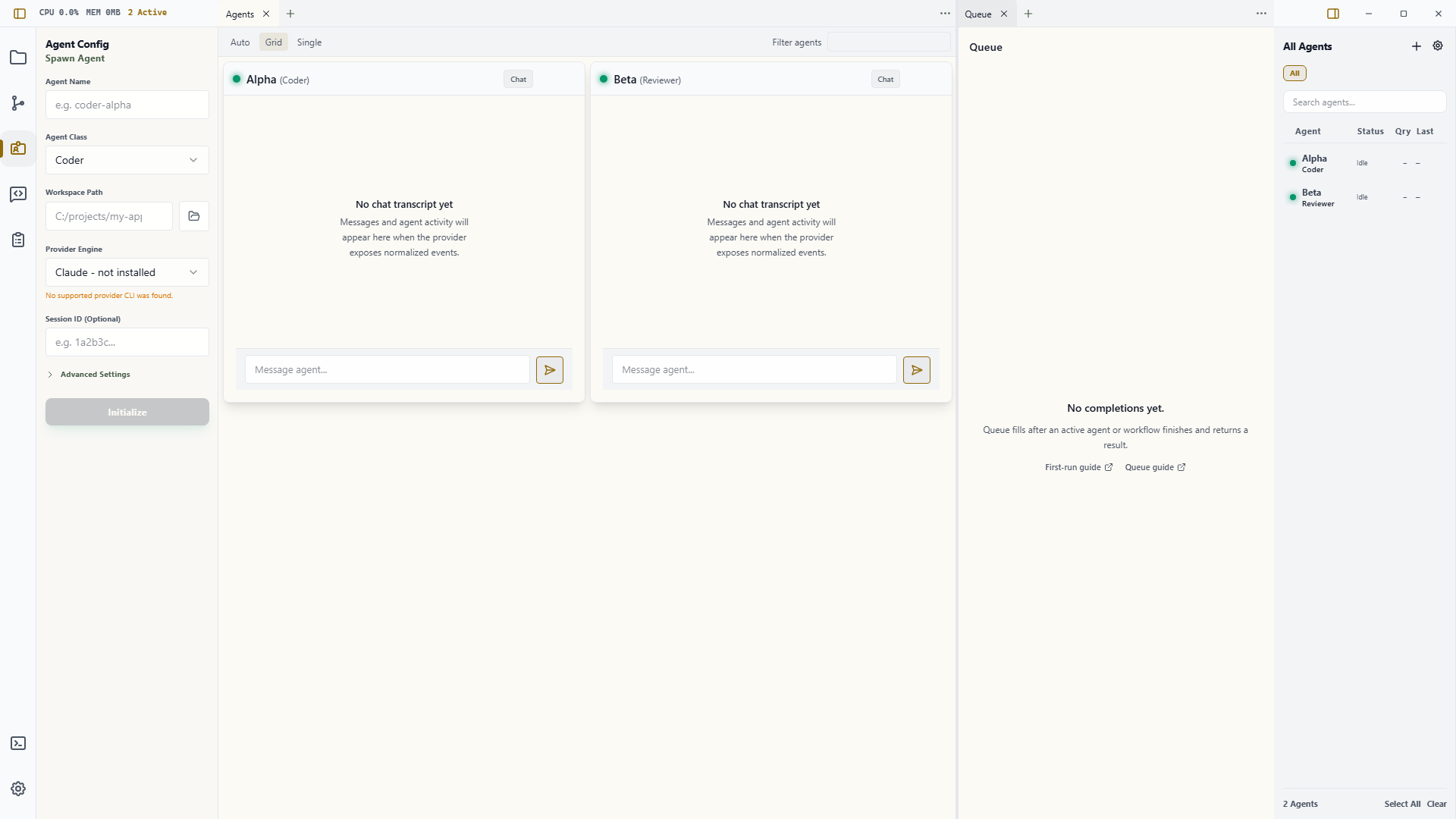
Open a Surface
An empty pane is a surface launcher. Choose a core surface directly from its icon, title, and description, reopen recent work, or select Browse all surfaces for resource-backed choices such as Agent Session.
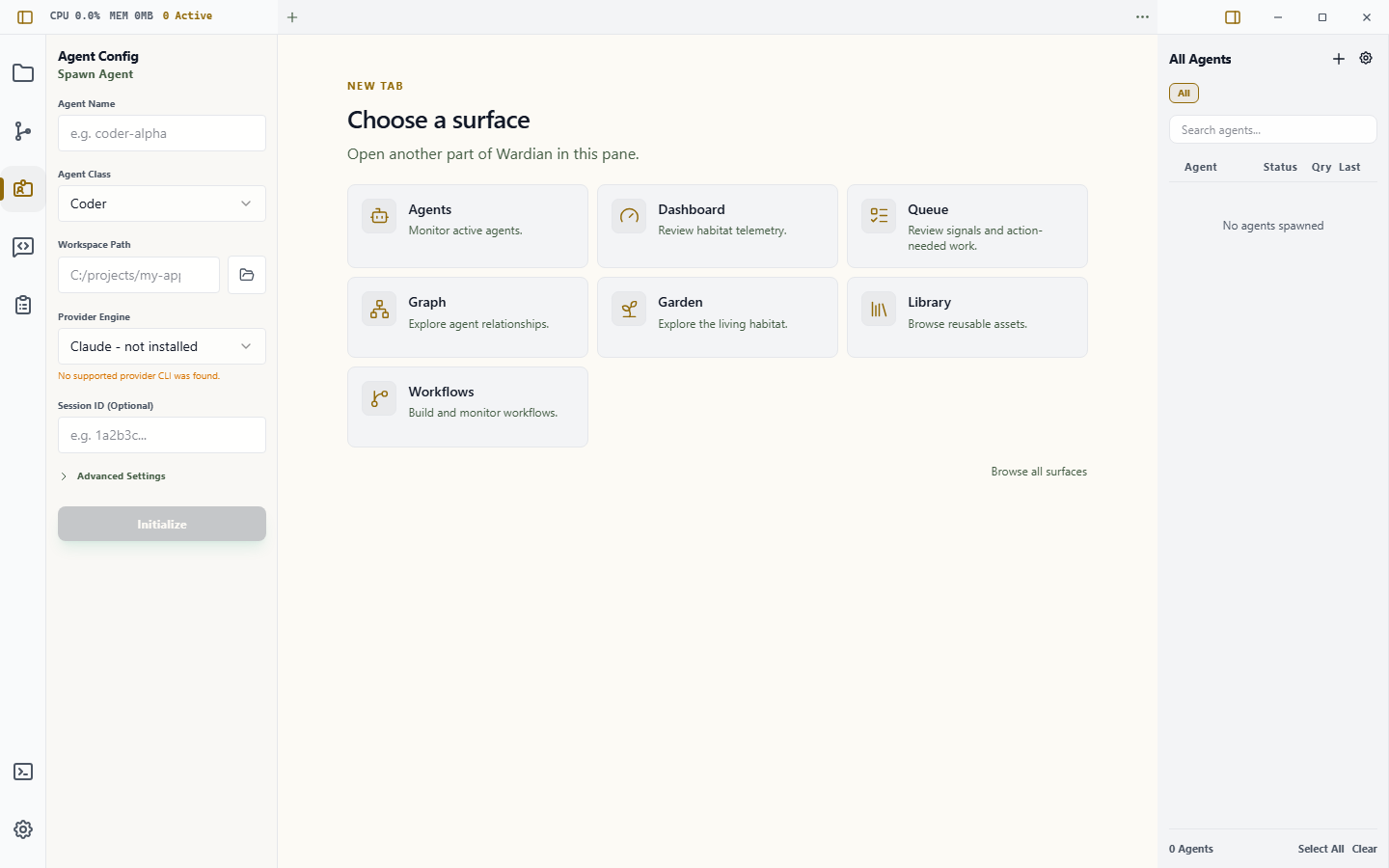
There are three common entry points:
- Press
Ctrl+Pon Windows/Linux orCmd+Pon macOS for Quick Open. - Select the + button in a pane to open a New Tab, or choose a tool in an empty pane's launcher.
- Press
Ctrl+Shift+P/Cmd+Shift+Pfor the searchable command palette.
By default, a pane's + button appends and focuses an ordinary New Tab in that pane. The tab contains the full visual surface launcher. Choosing a card replaces New Tab in place, preserving its pane and tab position; choosing an already-open singleton closes New Tab and focuses the existing tab. Choose Browse all surfaces to continue that same replacement through the compact searchable list.
To make + open the searchable list directly, open Settings > Appearance, find New tab button, and select Searchable list. Select New Tab to restore the default. This preference changes only +: Quick Open always opens the searchable list.
In the searchable list, select a surface name to open it in the captured pane, or press Ctrl+Enter on Windows/Linux or Cmd+Enter on macOS to open it to the side. There is no separate visible Open to Side button in the picker. A surface that is already open as a singleton, such as Dashboard or Inbox, is focused instead of duplicated.
The Agent Session choice needs one selected agent in the right roster. For a faster agent-specific path, use the roster actions described in Watchlists.
Work with Tabs and Panes
Each pane has its own tab strip and active surface. Every tab includes a compact type icon shared with the surface chooser, so different tools and agent sessions remain recognizable when titles are truncated. Top-edge strips form the window chrome; strips in downward splits remain local. The + sits immediately after the tabs, while … remains at the far edge.
Tabs share the available strip equally while there is room, then their labels compress and ellipsize as a pane fills. The close affordance reserves its space without changing a tab's width when it appears, so the label gives up text before the tab jumps. When the compact minimum is reached, select the overflow arrow to open the full tab switcher and choose any hidden tab. The arrow is intentionally count-free because the number of clipped tabs changes as neighboring tabs reflow after a close.
Surfaces respond to the size of their own pane. In compact splits, toolbars wrap and inspectors or run drawers overlay their local canvas; they do not use the full application window as their layout boundary.
- Select a tab to bring that surface forward.
- Drag a tab within its strip to reorder it.
- Use the close button on the active tab, or reveal it by hovering another tab, to close that presentation.
- Drop a tab in the center of another pane to move it there.
- Drop a tab at a pane's edge to create a 50/50 split. The half-pane preview appears only when both resulting panes can remain usable; undersized destinations retain center-drop movement but do not advertise or commit an impossible edge split.
- Right-click a tab to close it, split it right or down, or move it to an adjacent pane.
- Open the pane's … menu for Zoom pane / Restore pane, Split pane right, Split pane down, Merge into previous pane / Merge into next pane, and Close pane. Dirty surfaces ask before they close.
- Use the command palette or keyboard shortcuts when you prefer not to use a context menu.
Zoom pane temporarily expands one pane to the Workbench area. It does not change the saved split tree or maximize the application window. Choose Restore pane to return to the multi-pane layout.
When a move or close removes the last tab from a non-final pane, Wardian collapses that pane automatically and expands its sibling into the released space. The final pane is never removed; if its last tab closes, it remains in place and shows the Home surface chooser.
Files
Explorer file opens use normal Workbench tabs. A single click opens one transient Files preview in the current pane; selecting another file replaces that preview. Double-click, Enter, the Explorer Open action, or opening to the side makes the tab permanent. A permanent tab participates in ordinary close history and restore. A transient preview does not.
Rendered Markdown can switch to an editable source presentation and back inside the same Files tab. The compact control shows the current presentation: Book while rendered and Pencil while editing. Its label describes the action, Edit source or View rendered. Source-only text opens directly in Monaco. This choice neither opens another tab nor starts another file subscription.
Edits stay in an unsaved buffer until you press Ctrl+S on Windows/Linux, Cmd+S on macOS, or choose Save from File actions. A dot beside the breadcrumb and in the Workbench tab marks unsaved edits. Save As writes the current buffer to the exact destination selected by the native picker and opens that copy in a new ordinary file tab; it does not retarget the original tab or an artifact relationship.
Wardian keeps one working buffer for each canonical file, even when that file is visible in more than one pane. The buffer has durable recovery: unsaved text can be inspected read-only after a restart even when file access has been revoked, but the recovery itself cannot read or write the current file. Saving or merging requires restoring access to that exact file. Only the final presentation of an unsaved file asks Save, Don't Save, or Cancel before it closes.
For a text file, changed regions are annotated inline in the editor and the header shows a compact change count. Its comparison button opens the full Saved-file lens. The lens uses side-by-side columns when its available pane width is at least 720 px and a unified layout below that. A saved side-by-side preference is honored down to a 560 px hard minimum; below 560 px Wardian temporarily uses unified layout without changing the preference. An open review drawer is subtracted before Wardian chooses the layout.
If the file changes on disk while the shared buffer is dirty, Wardian marks the editor stale and offers Merge, Reload from disk, or Cancel. Merge rebases the working text and keeps it dirty until an explicit Save. Reload discards the working buffer and its recovery record. Cancel leaves the stale state unchanged. Saved-file and presented-artifact comparison are available now; prompt checkpoints remain explicit unavailable baselines until their adapter is installed. Wardian never substitutes another revision and labels it as the requested history.
An agent can present an authorized file as a durable artifact. Wardian opens or refreshes its artifact:<id> tab in the background, marks it for attention, and keeps the user's current tab focused. Opening the artifact attaches its current working file to the same editor buffer used by an ordinary Files tab. The provenance strip shows the origin agent, presented time, review status, and version selector. Changed since presented compares the live working hash to the selected immutable version; the change-count control opens the usual Monaco line comparison. Attention clears only when the artifact is actually visible. Closing the tab does not delete the artifact thread, and a restored Workbench reauthorizes the canonical file against the origin agent's current primary and additional directories.
The foundation renders Markdown, images, and PDFs and edits validated text. HTML and SVG are available as inert source only; Wardian never injects them into the application DOM. Prompt and presented-version baselines, comments, approval, and isolated live HTML/SVG remain downstream capabilities; they do not add Preview/Changes/Draft modes or another editing buffer. Unsupported and oversized resources stay local to their tab and offer metadata, Retry, Open With, or Reveal rather than failing the Workbench. Ordinary saves and atomic editor saves refresh through the same stable revision stream. If a file is temporarily unreadable or keeps changing during a scan, its tab shows one local unavailable state and automatically recovers when the source stabilizes.
The same metadata state applies when text exceeds 16 MiB or 200,000 lines, an image exceeds 64 MiB encoded or 64 million decoded pixels, or a PDF exceeds 256 MiB. Wardian does not read the oversized content into a renderer merely to identify it. The tab can still show its name, type, size, modification time, typed limit reason, Open With, and Reveal actions. If the file later moves back within its limit, the existing tab refreshes into the normal preview.
Files is intentionally absent from the New Surface launcher in this slice.
Browser tests cover the responsive Files UI with mocked native calls. Claims about picker authorization, retained handles, real filesystem writes and stale conflicts, durable recovery across runtime recreation, and subscription cleanup require the native desktop test harness. Open files from Explorer; the launcher will become available only when the artifact review and isolated active-content contracts are complete. A restored file tab is resolved again by the Rust backend against current agent primary and additional directory grants, or an exact native-picker grant remembered by the backend. Layout state never confers filesystem authority. Picker grants survive relaunch by reauthorizing only the same canonical file; the Workbench document never stores a capability token. If two spellings resolve to the same file, normal opens focus one canonical tab; an explicit Open to Side keeps the intentional second presentation. Each presentation keeps the pathname that authorized it. If a symlink or junction used by one presentation is removed or retargeted, that presentation loses access without disrupting another presentation opened through the still-valid direct path.
PDF text search is deliberately bounded so a very large document cannot lock the Workbench. It searches at most 128 pages or for two seconds per query and labels partial results with the number of pages inspected.
Image and PDF previews use short-lived immutable snapshots. A preview therefore keeps serving the exact revision it opened even if the source changes or is deleted; the next revision opens a new snapshot. Wardian automatically reclaims the snapshot and renderer lease at the ticket deadline, including when a pane abandons the preview without sending a later request.
Reopen and Reset
Closing a surface adds it to the recently closed history. Press Ctrl+Shift+T / Cmd+Shift+T, choose Reopen Closed Surface in the command palette, or use the Reopen action on an empty pane's Home state. Wardian restores the most recently closed presentation first.
Choose Reset Workbench from the command palette when the saved layout is unusable or you want the default layout again. Reset is a guarded operation: dirty surfaces can prevent it, and the Workbench is temporarily unavailable while the durable reset completes.
Wardian saves the tab order, pane tree, active tabs, split sizes, and supported per-surface state. It restores that document at the next launch. If the primary document is invalid, Wardian can recover from its backup. A newer, unknown, or unavailable surface is kept as a placeholder instead of silently dropping its stored state.
Routine layout saves run in the background without a titlebar progress notice. You can continue switching tabs while a save is pending. Save errors, conflicts, recovery notices, and safe-mode notices remain visible when action is needed.
If Wardian cannot safely load the layout, it enters Workbench safe mode. Safe mode renders a conservative single-pane projection while preserving the durable document so it can be recovered, exported, replaced, or reset deliberately.
Agent Sessions and Terminal Ownership
An agent session surface is a presentation of a live agent runtime. Closing its tab detaches that presentation; it does not pause, clear, delete, or kill the agent. Use the roster or agent lifecycle controls when you intend to change the runtime itself.
The same terminal can appear in more than one desktop or remote presentation. The header reports Owner, Mirror, or Connecting:
- Owner can send terminal input and determines the canonical terminal geometry.
- Mirror follows the same output and is read-only until explicitly activated.
- Connecting is waiting for the terminal broker.
Click inside a terminal, or focus it and press Enter or Space, to explicitly request interaction ownership for that presentation. Keyboard focus alone does not steal ownership. Short switches away from Agents keep its budgeted terminals warm but hidden and unable to accept input. Returning reuses those renderers; if Wardian had to reclaim one to stay within resource limits, it remains hidden until its backend, snapshot, and final fitted geometry are ready.
Mirrors keep the owner's terminal grid and fit it into their pane. A narrow pane may scale the grid down or let you pan across it. After an owner resize, Waiting for terminal repaint means Wardian is keeping the last accurate frame until the provider draws at the new size, or for about one second if the provider stays silent, after which it shows the terminal's current frame. The owner can choose Enable keyboard input to prompt a stalled provider, but keys may affect a prompt that is not yet visible. Mouse input stays disabled during this state. Terminal formatting unavailable or Terminal formatting invalid identifies a degraded snapshot; the owner can use the same explicit keyboard recovery action.
Contextual agent opens
When Graph or Inbox opens an agent, Wardian first reuses the existing Agents view wherever it is in the Workbench. It activates that tab when needed, focuses the pane, selects the agent, and brings its card into view instead of adding a tab. This works when Agents is another tab in the same pane or an inactive tab in another pane. If no Agents view exists, Wardian next retargets an adjoining Agent Session. If neither target is available, Wardian uses the usual focus-or-open behavior.
Garden's Open agent session action instead targets the canonical Agent Session terminal through contextual navigation, preserving the Garden surface. Double-click or Enter on a Garden agent first enters its composition. Workbench Back or closing the destination returns to Garden with its saved breadcrumb, selection, camera, and activity lens.
When you zoom one pane, Wardian can still use an Agents tab in that pane but will not switch to a hidden pane. The roster remains explicit: its Open and Open to Side actions keep their usual behavior.
Left Rail and Right Roster
The left icon rail controls auxiliary tools: Explorer, Source Control, Agent Configuration, Command, Automations, the user terminal, and Settings. It never switches the active Workbench surface. A rail item can open or focus its collapsible side pane, and a tool in that pane may explicitly request a Workbench surface.
The right roster has two separate jobs:
- Selecting agents sets the target for Explorer, Source Control, Command, and other auxiliary tools.
- The roster's Open and Open to Side actions create or focus agent-session surfaces.
Selecting an agent does not silently replace the active Workbench tab.
Keyboard Reference
Ctrl below means Cmd on macOS.
| Action | Shortcut |
|---|---|
| Quick Open | Ctrl+P |
| Command palette | Ctrl+Shift+P |
| Open Surface | Ctrl+Shift+O |
| Close active surface | Ctrl+W |
| Reopen closed surface | Ctrl+Shift+T |
| Recent tab switcher | Ctrl+Tab / Ctrl+Shift+Tab |
| Previous / next tab | Ctrl+[ / Ctrl+] |
| Previous / next pane | Ctrl+Shift+[ / Ctrl+Shift+] |
| Traverse panes | Shift+F6 / F6 |
| Split right / down | Ctrl+Alt+Right / Ctrl+Alt+Down |
| Move tab to previous / next pane | Alt+Shift+Left / Alt+Shift+Right |
| Toggle pane zoom | Alt+Shift+Z |
| Focus left dock / right roster | Ctrl+Alt+L / Ctrl+Alt+R |
| Focus Workbench | Ctrl+0 |
| Open Agents / Dashboard / Inbox | Ctrl+Alt+A / Ctrl+Alt+D / Ctrl+Alt+I |
| Open Analytics | Ctrl+Alt+Y |
| Open Graph / Garden / Library / Automations | Ctrl+Alt+G / Ctrl+Alt+H / Ctrl+Alt+B / Ctrl+Alt+W |
The recent tab switcher is pane-local: hold Ctrl, press Tab to preview recent tabs, then release Ctrl to open the selected tab. Workbench shortcuts do not intercept normal typing inside text fields or terminal-owned key combinations. F6 pane traversal remains available for keyboard navigation.