Inbox
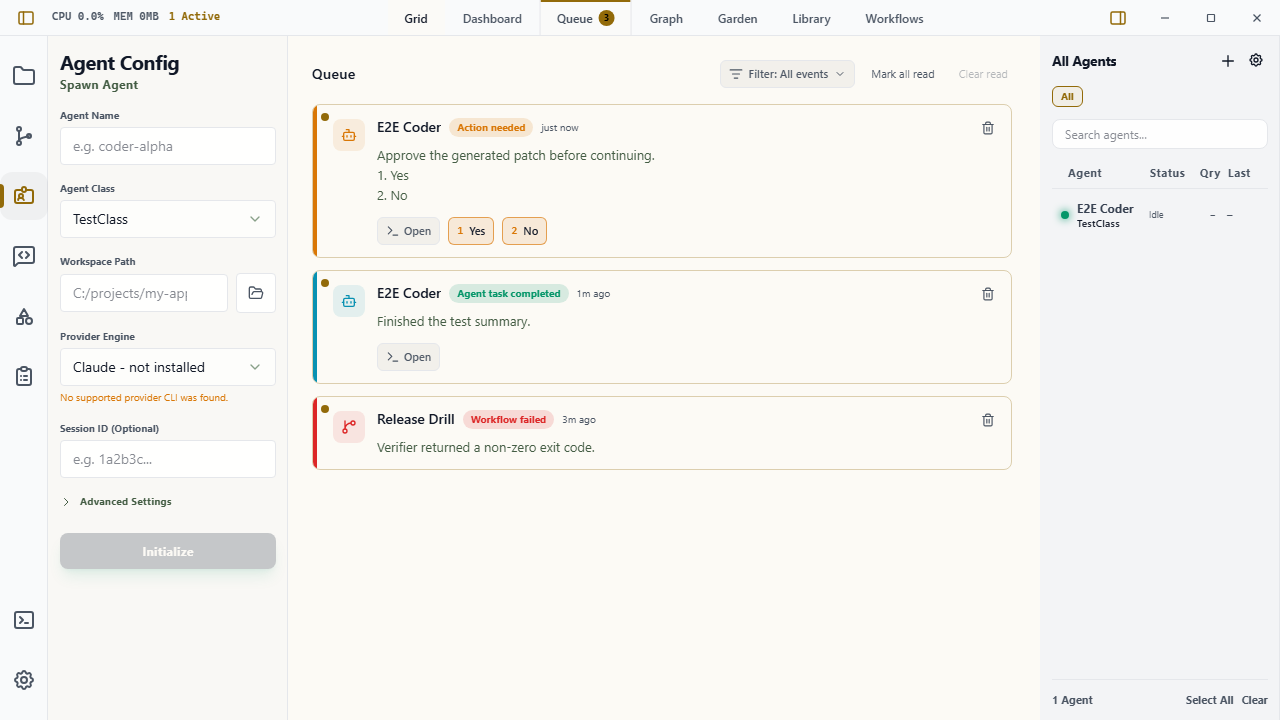
Inbox is Wardian's user-facing space for finished work, important agent updates, and decisions that need your input. It is separate from an agent's Mailbox: a Mailbox delivers work to an agent; Inbox brings consequential information back to you.
Use Inbox to review finished work, catch failed automation runs, read an important update, respond to a provider prompt, or decide whether an agent may take a consequential action.
What Appears in Inbox
Wardian records these items:
- Work finished: an agent or automation reached a terminal outcome. When an agent finishes a turn with an answer, Wardian creates one card that holds that answer. This works without the Wardian window open, and the card also reaches the mobile Inbox. Interactive Claude sessions are the exception: Claude Code does not report whether a turn really ended successfully, so Wardian creates no automatic completion card for them rather than guess. Wardian never turns generic Idle transitions, terminal output, provider control commands, interrupted or failed turns, or an unconfigured session ID into a completion card. If Wardian cannot identify the turn's final answer, it skips the automatic card.
- Important update: an agent explicitly sends a concise user-facing update with
wardian notify update. Use this for a material result, a significant limitation, or a change that affects the user's next decision. - Approval request: an agent explicitly sends a structured request with
wardian notify approval. It names the proposed action, why it is risky, the available choices, and an expiry. Provider-native permission prompts remain provider-sourced Action needed items. - Automation outcome: an automation completed or failed. Automation approval nodes also project their waiting decision into Inbox; the automation engine remains authoritative for its state and resolution.
- Action needed: provider runtime evidence says an agent needs input, such as a provider permission, authentication, selection prompt, or structured question. Structured provider questions show the provider's question text and options as read-only context; use Open agent to answer in the provider UI.
Manual approval is intentionally exceptional. Agents should request it only for irreversible, external, security-sensitive, or materially costly actions, or when you explicitly asked for approval. A request must name the action and risk, offers explicit choices, allows only one unresolved request per agent, and expires without proceeding automatically.
Reading Inbox
Press Ctrl+P / Cmd+P, select a pane's + button, or use the empty-pane Home state, then choose Inbox. Unread items appear first and increment the Inbox tab badge. Inbox is a singleton surface, so opening it again focuses the existing tab.
Each item shows its source, agent or automation, time, and summary. Long text is collapsed by default; use Show details to expand it. On a completion card, Show details shows the agent's full answer, not only the summary.
To keep large histories responsive, desktop and mobile Inbox initially show the newest 20 cards and load up to 20 older cards as you scroll near the end of the list or select Load older items. This only limits what is mounted on screen; it does not discard Inbox history or change filters, read state, or triage actions.
Use the Filter dropdown to choose visible event types:
- Action needed
- Agent completions
- Automation completions
- Automation failures
Inbox preferences persist under the active Wardian home.
Triage Actions
- Click an item to mark it read.
- Use Open on an agent card to open or focus the related agent-session surface.
- Use recognized provider choices only on a provider-sourced Action needed card. Structured provider questions are informational Inbox projections: their options do not submit a response, and reading or dismissing the card does not resolve the provider request. Use Open agent to answer it in the original provider UI.
- Use the explicit choices on a manual Approval request card. Wardian records the decision durably and returns it to the requesting agent; it does not send a free-text response to the provider terminal.
- Use Approve or Reject on an automation approval card to resolve its waiting gate from Inbox. Wardian records the decision before it continues an approved automation in the background.
- Use Mark all read, Clear read, or the item trash control for reviewed, non-pending items.
When you choose a provider response, Wardian first sends the response to the agent and then acknowledges the Inbox card. If the response is sent but the acknowledgement fails, the card says Response sent and offers Retry Inbox status. Retrying the status does not send the provider response again. The sent choice is recorded with the Inbox item, so reloading the mobile Inbox also keeps that response disabled and exposes the status retry.
If the host cannot confirm whether the provider received the choice, the card shows Response delivery is uncertain and keeps the choice disabled. Check the agent session before taking any further action; Wardian does not resend a potentially consequential response automatically, and the item cannot be dismissed while its recovery state is unresolved.
The mobile Inbox includes the same triage actions: choose an event filter, tap an item to acknowledge it, mark all eligible items read, clear reviewed legacy items, or dismiss an individual legacy item. Agent action choices and pending approval choices remain available on their cards. Use Open agent to jump to the related mobile agent session without leaving Inbox.
An unresolved approval cannot be cleared or dismissed. When it expires, the agent must not treat the absence of a response as approval.
If the desktop Inbox saves before its load baseline is available, Wardian keeps the latest persisted projection authoritative. This prevents a stale desktop snapshot from resurrecting an item dismissed from another surface.
Clear read removes read completion items, including automation outcomes. A cleared automation run keeps a small local triage marker so the durable automation history remains intact without recreating the Inbox card on the next refresh. Durable notification history and read Action needed prompts remain visible, and the control is disabled when there are no completion items to clear.
Agent Read and Write Paths
Agents have a read path and a write path. Read the shared Inbox projection before deciding whether another update or action is needed:
wardian inbox list
wardian inbox list --unread --type action_needed,approval_request \
  --source provider_runtime,interaction_store
PowerShell:
wardian inbox list
wardian inbox list --unread --type action_needed,approval_request `
  --source provider_runtime,interaction_store
The result is newest first and includes a schema, item type, read state, timestamp, and evidence source. Use --limit and --offset for bounded polling. The read command is side-effect-free; it does not mark, dismiss, or resolve an item. If the desktop app is unavailable, the CLI uses persisted queue items, durable notification records, and workflow-run checkpoints for awaiting approvals and terminal outcomes.
From a Wardian-managed agent session, use the write path rather than writing a terminal message that looks like a request:
wardian notify update "Implemented the migration and found one compatibility risk" \
  --title "Inbox refactor"

wardian notify approval "Deploy the release" \
  --title "Deploy production" \
  --action "Run the production deployment" \
  --risk "This changes live traffic and may require rollback" \
  --choice "Deploy" \
  --choice "Do not deploy" \
  --wait
PowerShell:
wardian notify update "Implemented the migration and found one compatibility risk" --title "Inbox refactor"

wardian notify approval "Deploy the release" --title "Deploy production" --action "Run the production deployment" --risk "This changes live traffic and may require rollback" --choice "Deploy" --choice "Do not deploy" --wait
notify update is for a concise, important human summary; ordinary progress remains in the agent transcript. notify approval --wait blocks until your decision or expiry, then reports the structured outcome to the calling agent. See the CLI guide for the full command reference.
Evidence and Persistence
Inbox cards are projections of canonical runtime, automation, and interaction evidence. Completion and provider action-needed projections can carry stable evidence_id and evidence_source values to avoid duplicates during refreshes or terminal repaint. Durable notify updates and approvals use Wardian's interaction store, not the frontend completion cache.
Startup hydration can restore existing Inbox records, statuses, interactions, and provider input state, but must not create new completion or action-needed evidence. Existing Queue preferences and cards migrate to Inbox when Wardian loads them.
Alerts and Limits
Inbox alert preferences live in Settings > Inbox and are per event type. Desktop and sound alerts are enabled by default only for Action needed; passive completions and updates stay quiet unless you opt in.
- Items older than seven days are ignored by the legacy completion projection when it loads.
- CLI Inbox reads use the same seven-day cutoff and a bounded 200-item source page; a
truncatedresult includesnext_offsetfor older data. - Automatic completion cards use only a canonical final provider response. Interactive Claude turns produce none until Claude Code exposes a supported turn verdict. Open the source session or ask the agent for a summary when no automatic card appears.
- Provider approval-looking text does not create generic manual choices. Wardian shows buttons only for explicit provider choices or a structured
notify approvalrequest. - Clearing read items removes the completion projection for the active Wardian home. Durable notify history and automation state retain their own lifecycle; cleared automation run identities are retained only as Inbox triage markers.