User Interface Overview
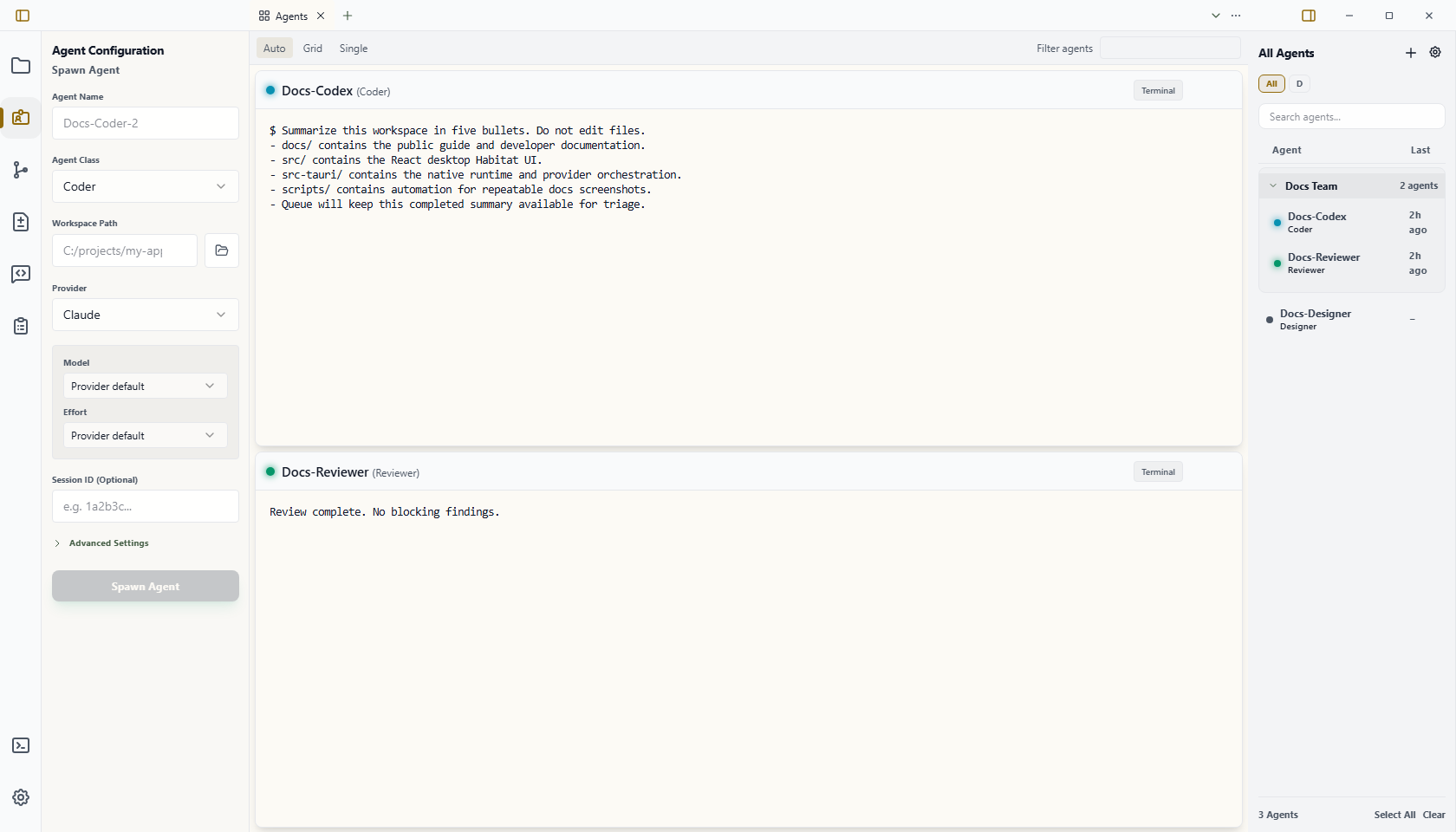
Wardian is a desktop workspace for watching, directing, and organizing the agents you run locally. Its persistent app layout surrounds a tab-based Workbench, keeping live terminals, reusable items, automation state, Inbox items, tools, and the agent roster close to the work. The center can hold one tab or several split panes without changing whether an agent keeps running.
If the names for the parts of the app are new, start with Key Concepts.
Title Bar
Wardian uses frameless, Obsidian-style top chrome: the topmost Workbench tab groups occupy the center of the window bar rather than sitting beneath a separate titlebar. Side-by-side top groups divide that row; groups split downward keep a local tab header. Empty top-edge header space drags only the native window, so it cannot accidentally detach or relocate the pane's tab strip.
The chrome retains the left sidebar toggle, optional telemetry, right roster toggle, and native window controls. Commands remain in Quick Open (Ctrl+P / Cmd+P) and the command palette (Ctrl+Shift+P / Cmd+Shift+P), not in another toolbar.
Workbench
The center workspace is composed of tabbed panes. Each pane can contain several surfaces and can be split right or down. Drag tabs to reorder them, move them between panes, or drop them at an edge to create a split.
Use the + button immediately after a pane's tabs to append an inline New Tab containing the visual surface launcher. Choosing an app replaces that tab in place. An actually empty pane derives the same launcher without persisting a tab. In Quick Open, Ctrl+Enter / Cmd+Enter opens the selected surface to the side; the picker has no separate visible Open to Side button. The pane … menu remains at the far edge and contains split, merge, zoom/restore, and pane-close actions. Right-click a tab for tab-specific move, split, and close actions, or use the close button shown on the active or hovered tab.
Wardian persists the layout and restores it after restart. Recently closed surfaces can be reopened. Recoverable placeholders keep unavailable surface or agent references visible instead of silently deleting them; Reset Workbench deliberately returns to the default layout.
See Workbench for the complete tab, split, restore, safe-mode, and keyboard behavior.
Interaction cues
Enabled buttons, links, tabs, menus, list rows, form choice controls, and other semantic actions use a pointer cursor when they can be activated. Disabled actions retain their disabled cursor state. Drag-first controls use a grab cursor, while terminal and editor areas keep a text cursor so the cursor also explains what kind of interaction is available.
Left Rail: Auxiliary Control
The left icon rail opens collapsible auxiliary panes:
- Explorer browses the selected agent workspace or Wardian home.
- Source Control stages, diffs, commits, syncs, and manages worktrees for the selected agent.
- Agent Configuration spawns and configures agents.
- Command sends broadcasts and starred prompts to selected agents.
- Automations provides automation-related auxiliary controls and can explicitly open the Automations surface.
- Terminal opens the standalone user terminal.
- Settings opens application preferences.
The rail never performs global surface navigation. Changing rail tools leaves the active Workbench tab and split layout intact.
Right Roster: Monitor and Target
The Agent Watchlist is the persistent roster for status, selection, teams, watchlists, and lifecycle actions.
Roster selection sets the target for auxiliary tools such as Explorer, Source Control, and Command. It is separate from Workbench navigation:
- Open focuses or opens that agent session in the active pane.
- Open to Side opens it in a neighboring pane.
- Selecting a row only changes the current tool target; it does not replace the active surface.
See Watchlists for grouping and targeting behavior.
Agents
Agents is the multi-agent monitoring surface. Its Auto, Grid, and Single modes adapt the number and size of visible agent cards to the available surface area. Auto keeps the full roster visible: it uses multiple columns whenever useful cards fit side by side and stacks into one scrolling column otherwise. Explicit Single is temporary focus and restores the previous Auto or Grid mode when minimized. Grid is a mode inside this surface, not a global app page.
Agent cards can show the real provider terminal or a normalized Chat view. Closing the Agents surface or an agent-session tab closes only that presentation; the agent runtime continues until you use a lifecycle action such as Pause, Start Session, Restart Session, New Session, or Delete Agent.
Terminal Continuity
Wardian brokers terminal output, input ownership, and canonical geometry across Agents cards, agent-session tabs, and remote presentations. A presentation becomes interactive only after an explicit ownership request. Focus traversal alone does not steal the input lease or resize the shared PTY.
If several presentations show the same terminal, the active one is labeled Owner and the others are Mirror / Read only. Wardian can reclaim hidden renderers while retaining terminal state; a visible presentation restores and fits its renderer automatically.
Provider agent terminals use one consistent blinking bar caret across desktop and remote views. Provider-authored effects and animations remain visible; generic user terminals keep their application-controlled cursor modes.
Common Keyboard Shortcuts
Ctrl below means Cmd on macOS.
Ctrl+P: Quick Open.Ctrl+Shift+P: command palette.Ctrl+Shift+O: Open Surface.Ctrl+W: close the active surface presentation.Ctrl+Shift+T: reopen the most recently closed surface.Ctrl+Tab/Ctrl+Shift+Tab: preview and switch to the next or previous recent tab in the active pane.Ctrl+[/Ctrl+]: previous or next tab.F6/Shift+F6: next or previous pane.Ctrl+Alt+A/Ctrl+Alt+D/Ctrl+Alt+I: open Agents, Dashboard, or Inbox.Ctrl+Alt+G/Ctrl+Alt+H/Ctrl+Alt+B/Ctrl+Alt+W: open Graph, Garden, Library, or Automations.Ctrl+0: focus the Workbench.Ctrl+B: toggle the left sidebar.
Workbench shortcuts yield to text inputs and terminal-owned key combinations. See the Workbench keyboard reference for splits, moves, docks, and zoom.